5-minute Quick Start
In five minutes your church will have its first campus configured, the check-in kiosk operational, and ready to receive its first gift. None of this requires installation; everything runs in your browser.
If you plan to use electronic giving, have your church’s information ready for Stripe (legal name, EIN or tax ID, bank account). You can skip this step and connect later.
Create your church account
- Go to app.ministrium.com/registro .
- Fill in the church name, city, primary language (ES/EN), and time zone.
- Create the super admin user (your personal email). This user has full access and will be the support contact.
- Confirm your email through the link that arrives in less than a minute.
After confirmation you enter the panel and see the welcome screen for the 14-day free trial, no credit card required.
Configure your first campus
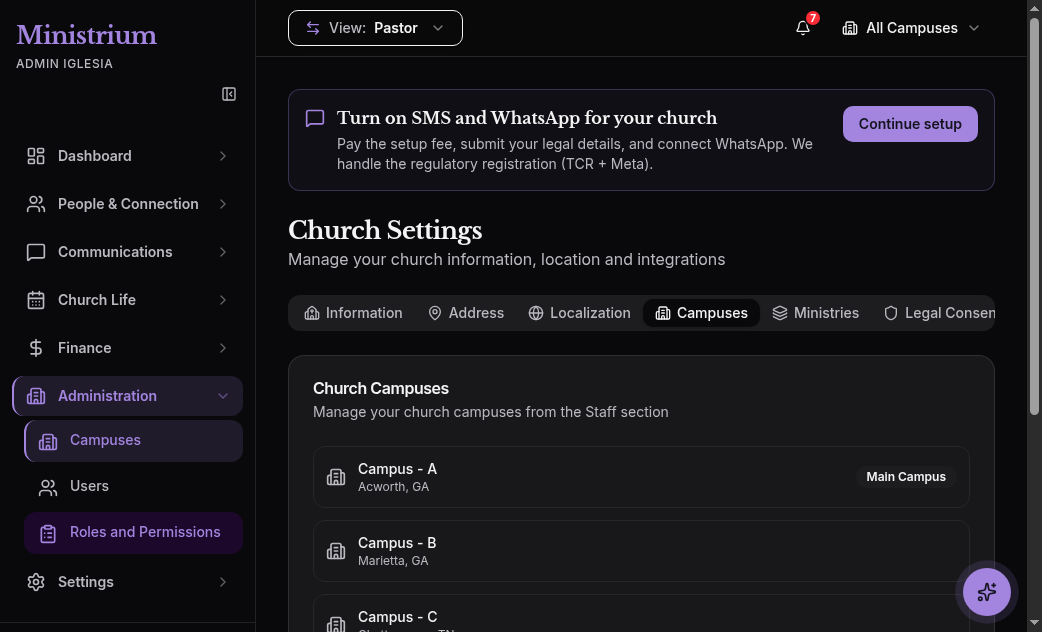
- In the side menu, open Church → Campuses and click Create campus.
- Fill in the campus name (for example Main Campus), address, and a 4-digit PIN for the check-in kiosk.
- Check the Set as primary campus option.
The primary campus is the one assigned by default when someone registers as a visitor or a new member is created without specifying a campus.
Invite your first staff member
- Open Church → Team and click Invite staff.
- Fill in the staff member’s name and email.
- Assign one of the roles: pastor, supervisor, secretary, accountant, ministry leader, or cell leader. See Roles and permissions for details.
- Click Send invitation.
The staff member receives an email with a single-use link to create their password. The invitation expires in 7 days and can be resent.
Connect Stripe (optional)
If you’ll receive electronic gifts:
- Open Settings.
- Go to the Integrations tab.
- Choose Connect with Stripe and complete the flow Stripe shows you.
- When done, you return to Ministrium. The integration may show as Connected, Pending verification, or Not connected.
Every digital gift goes to your church’s Stripe account. Fee details are in Overview.
Share the giving link
When Stripe is ready and online donations are on in Finance:
- Open Finance.
- Use Share Giving Link for the QR code or Copy URL of the public giving page.
- Share that link with your congregation.
The public page is at https://app.ministrium.com/give/<slug>.
What to do now?
Your church is operating. The natural next steps are:
- Import members from a CSV if you already have a previous database.
- Activate the check-in kiosk on the entrance tablet.
- Configure the first communications campaign by email or WhatsApp.
- Create your first event with online registration.
- Take the admin panel tour to understand what every section of the side menu does.
If you need help at any step, write to soporte@ministrium.com or use the chat inside the application.