Import members
If your church already has a member base in another tool (spreadsheet, legacy system, export from another CRM), you can import it into Ministrium with a CSV file. This page describes the full flow: downloading the template, preparing the file, dry-run validation, importing, and recovering from errors.
Before you start
- Clean the source base. Taking the import as an opportunity to remove duplicates and records without basic data saves work later.
- Decide campus assignment. If you have multiple campuses, know in advance which members belong to each one. The
campuscolumn of the CSV is required if the church has more than one campus. - UTF-8 compatibility. Ministrium imports UTF-8 CSV files. Excel and Google Sheets export in UTF-8 if you choose CSV UTF-8 (comma delimited).
Steps
Download the official template
Go to CRM → Members → Import and click Download CSV template. The template contains the correct header and two example rows so you can see the format.
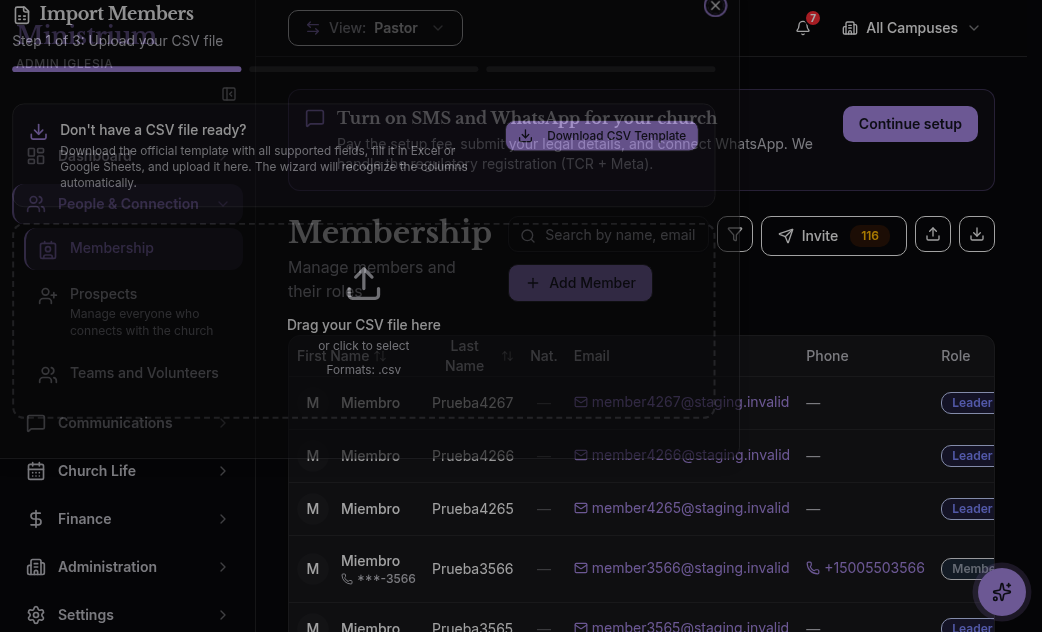
Required minimum columns:
| Column | Type | Notes |
|---|---|---|
first_name | text | First or given name. |
last_name | text | Family name. |
email | text | Optional but recommended; allows sending communications. |
phone | text | Optional; in international format +1 555 123 4567. |
campus | text | Campus name exactly as it appears in Church → Campuses. |
status | text | active, inactive, or transferred. |
Optional columns: date_of_birth (YYYY-MM-DD), gender, address, city, household_id (to group members of the same household), baptized (yes / no), baptism_date, notes.
Fill the file
Open the template in Excel, Google Sheets, or LibreOffice. Paste your data respecting the column names and allowed values.
Recommendations:
- One person per row, no blank rows in between.
- Households: assign all members of the same household the same
household_id(any unique text:rivera-household-001, etc.). Ministrium groups them automatically on import. - Duplicate emails: the importer rejects duplicate emails within the file. Review beforehand.
- No emojis or special characters in names if your source system introduces them.
Validate the file (dry-run mode)
In CRM → Members → Import, click Upload CSV, select your file, and check the Validate only option (dry-run mode).
Ministrium reviews the file without writing anything to the database and produces a report with:
- Valid rows: those that would import without error.
- Rows with warnings: those that would import but lack non-critical data (for example, no phone).
- Rows with errors: those that would be rejected (nonexistent campus, wrong date format, duplicate email).
Download the report, fix the file, and re-validate. Repeat until there are no errors.
Import for real
When validation is clean, re-upload the file without checking the dry-run option and click Import.
The import processes up to 5,000 rows per minute. You’ll see a progress bar. If the file is large, you can close the tab: the import continues in the background and you’ll get an email when it finishes.
After the import
When complete you’ll see:
- Total imported: number of people and households created.
- Total with warnings: imported but with incomplete data.
- Total rejected: if there were rows with errors filtered earlier (shouldn’t happen if you validated well).
- Downloadable report: a CSV with the result of each row for audit purposes.
The import is logged in the audit with the original file attached, retained for 90 days for traceability.
If you need to import historical donations, historical attendance, or cells, there are specific importers in each module. The member import is only for people and households.
Error recovery
If the import produced incorrect records:
- Delete one by one from CRM → Members. The action is logged.
- Bulk reverse: within the first 60 minutes, go to CRM → Members → Import → History and click Revert import. This deletes all members and households created by that specific import.
- After 60 minutes: bulk reverse is no longer available to avoid deleting data that may have been modified in the interim. Write to soporte@ministrium.com and we’ll help.
Next steps
- Admin panel tour — what to do now with the imported member base.
- CRM — the full module documentation.
- Communications — send the first welcome email to imported members.