Admin panel tour
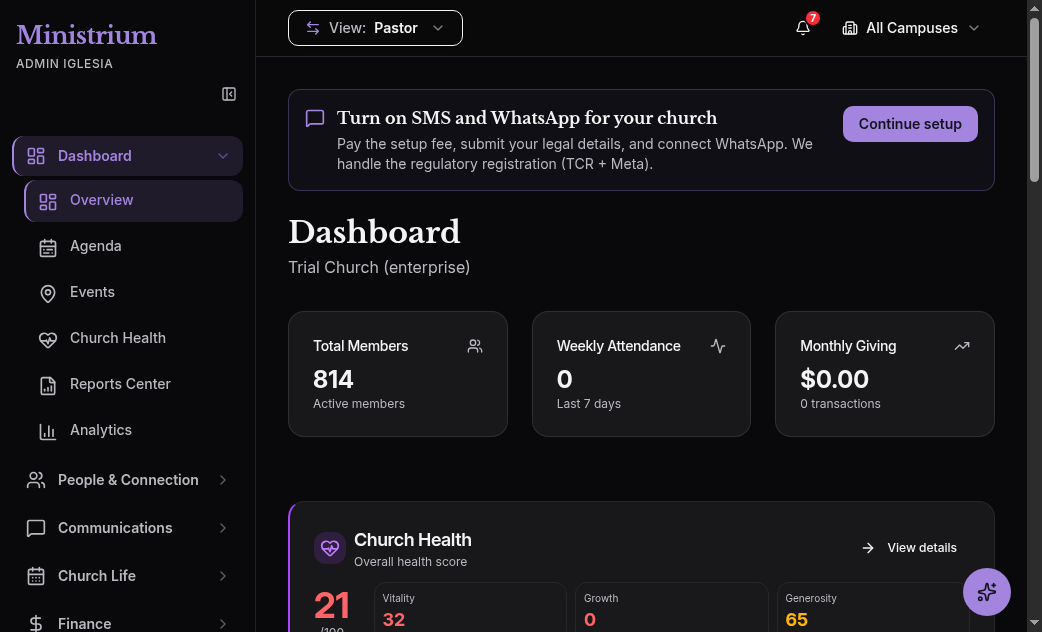
When you first sign in to /admin-church, you see Ministrium’s admin panel with a side menu organized by area. This page describes what each menu section does, in the order it appears, so you can orient yourself without having to open them all blindly.
The top bar
- Church logo and name. On the left. Clicking it always takes you to the executive panel.
- Campus selector. If your church has multiple campuses and your role can see them, a dropdown appears that filters the entire panel to a specific campus or shows aggregated.
- Global search. Top center. Searches by name, email, phone, member code, or donation number across the entire church.
- Notifications. Bell in the top-right corner. Actions that need your attention: failed recurrences, batches to close, expired invitations.
- Your profile. Avatar at the top right. Personal settings, interface language, sign out.
Side menu sections
What you see depends on your role and the most relevant module for you. The default order is:
Executive panel
The home screen. Key metrics for the church (or the selected campus): last week’s attendance, total raised this month, new members, upcoming events. Designed so the pastor or admin understands in 10 seconds how the church is doing.
CRM
People, households, and the assimilation pipeline. Subsections:
- Members — the full list with filters by status, ministry, campus, baptism date, etc.
- Households — view grouped by family.
- Prospects — guests and contacts in the pipeline.
- Pipeline — the assimilation stages and the prospects in each one.
- Import / Export — bidirectional CSV.
Attendance and Kiosk
- Today’s events — which services or meetings have active check-in today.
- Attendance dashboard — live numbers during the service.
- Kiosk tablet — the URL to open on the entrance tablet.
- Attendance reports — weekly, monthly, and annual trends.
Child Check-in
Variant of attendance with safeguards for minors. Configuration subsections (age ranges, tags, pickup authorizations) and operation during the service.
Finance
- Transactions — gifts in the period, with filters.
- Batches — grouping for counting and reconciliation.
- Funds — giving destinations, goals, and rules.
- Reports — annual donation statements.
- Sync Health — accounting connection status.
Events and Services
- Calendar — monthly and weekly view of services and events.
- Create event — online registration, capacity, waitlist.
- Regular services — weekly services with their order of service and teams.
Cell Groups
Hierarchical structure of cells, leaders, supervisors, and weekly reports.
Communications
- Email — campaigns, templates, metrics.
- WhatsApp — active sessions, outgoing and incoming messages.
- Automations — event-driven triggers (new member, failed donation, etc.).
- Lists — reusable dynamic segmentations.
Reports
Executive cross-module dashboards, operational per-module reports, and CSV or JSON exports.
Church
General configuration:
- Settings — legal data, branding, language, time zone.
- Campuses — physical locations. Create, edit, mark primary.
- Team — staff users with their roles. This is where you invite collaborators.
- Compliance — DPA, BAA, privacy policy.
- Subscription — plan, billing cycle, payment method.
Integrations
Connection with QuickBooks, Stripe (already connected if you went through the Quick Start), WhatsApp Business, SendGrid, Google Calendar.
Audit
Immutable log of every critical action. Filters by user, date, module, and action type. Visible only to the admin, pastor, accountant, and finance roles. See Audit and logs.
Keyboard shortcuts
| Shortcut | Action |
|---|---|
g then p | Go to Executive panel |
g then m | Go to Members |
g then d | Go to Donations |
g then e | Go to Events |
/ | Focus the global search |
c | Create (depends on module: new member, new event, etc.) |
? | Show the full shortcuts list |
The interface adapts to your role. Volunteer leaders primarily work in /liderazgo-local, with a reduced menu that excludes modules such as Finance and Settings. This is deliberate: each context shows only what applies to that function.
Next steps
- Import members — if you haven’t yet, upload your member base.
- Member App — learn the congregation’s experience in
/app. - Leadership Panel — review the modules available in
/liderazgo-local. - CRM — the full documentation for the central module.
- Reports — the dashboards leadership will check regularly.